Web App Guide
Account & Billing
Subscription, password, linked accounts, and account settings.
Linked accounts
You can link your Google and Apple accounts from the Account page under Linked Accounts. Once linked, you can sign in with either provider in addition to your password.
To disconnect a provider, click Disconnect next to it. You must have at least one sign-in method remaining. If a provider is your only sign-in method, set a password before disconnecting.
When signed in with Google or Apple, your provider profile photo appears in the app header.
Subscription
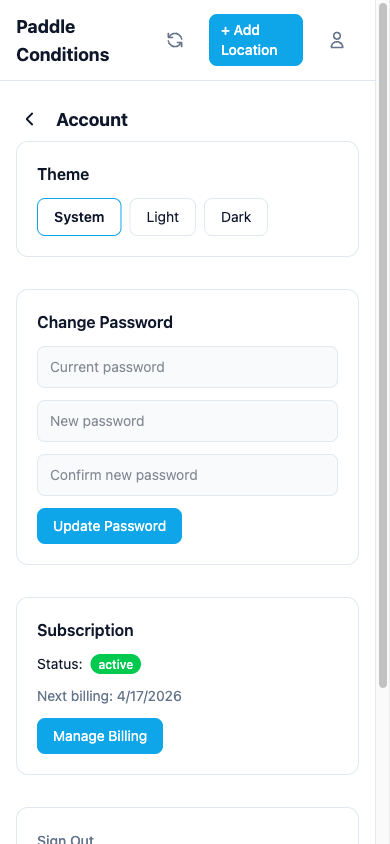
The web app requires an active subscription. You can manage your subscription, update payment methods, and view billing history through the Stripe customer portal, accessible from the Account page.
Change password
Update your password from the Account page. Enter your current password and choose a new one.
If you signed up with Google or Apple and have never set a password, you'll see a Set password option instead. Setting a password lets you sign in with email and password in addition to your social provider.
Delete account
You can delete your account from the Account page. This will cancel your subscription and remove all your data permanently. You'll need to type DELETE to confirm.
Ready to check conditions?
Get real-time scores, forecasts, and charts for your favorite paddle spots.
Get Started